

Introduction to Notion Account Setup
How you set up your Notion account from the very first moment largely determines whether you’ll have a powerful productivity hub or just a cluttered digital notebook. We think of Notion as more than a simple note-taking tool; it’s a full workspace where all the different aspects of planning, documentation, collaboration, and execution come together. A proper first-time setup saves you a lot of trouble and frustration down the road and, most importantly, makes working with the app a natural and intuitive experience for you.
The first time you open Notion, it looks pretty bare just like any other app with an empty page, but the simplicity is actually deceiving because this tool is extremely powerful once you get under the hood. Pages, databases, blocks, and integrations all these things work great only after a proper foundation, which is also the reason why a big part of the Notion newbies get lost there. We take time to set up these configurations purposefully so that Notion can be our helper rather than our taskmaster. Some of the system principles we use are also applicable to the biggest, most-complex enterprises.
We also know that Notion is a tool that evolves together with its user needs. What starts off as a solo project quickly turns into a team-based venture, so a setup that is done with scalability in mind won’t require a complete overhaul when the transition happens. In this tutorial, we’re going to cover the full spectrum of things that really count for a perfect Notion setup from security to workspace structure to advanced customization of databases so our Notion account will always run smoothly, safely, and smartly.
Creating and Securing Your Notion Account
A flawless Circle of Work in Notion necessarily starts with the cornerstone components such as account creation and security settings. To begin with, a professional email address should be used to sign up for a workspace that will mostly be used for business or team collaboration, for that matter. Proper permission management is facilitated and makes third-party tool integration easier, too, hence the point. Security is the next logical step, and that is what we focus on once we have signed up.
We set up a complicated password that is different from others. This minimizes the risk if the same credentials are compromised elsewhere. Furthermore, Notion has a single sign-on feature that we like to use when we have several apps in the same ecosystem. Two-factor authentication is mandatory. In this way, a second layer of security is added, which is virtually impenetrable even if the account credentials are leaked.
Additionally, we frequently check our device and session activities. That way, if we see anything suspicious, we can immediately cut off the access. It means that the hourface operation is only a few clicks away when we need it. On the other hand, email preferences input is simplified, which means we only get the security notifications that are really important to us and no spam. The opening-up exercises with security settings help build a solid and reliable working environment digitally and thus bare the way towards internal focus and higher productivity.
Understanding the Notion workspace layout
We always seek to understand the very first structure of information in Notion before creating any content.
The entire content in Notion is treated as a page. Additionally, a page in Notion can include subpages, databases or individual content blocks. This elastic hierarchy permits us to create systems that reflect our thought process, whether it is top-down project management or highly joint knowledge bases.
Besides writing and headings, blocks may include toggles, images, and embedded content.
Being very familiar with blocks, we can modify the layout and functionality in a very detailed manner. On the contrary, databases are good as storage of structured information.
We always design our working area with the users’ understanding as a primary consideration.
Major pages act as the dashboard or categories whereas the detailed pages hold the information of the first level of execution.
Such a conscious setup helps to resist information overload and at the same time, navigation becomes very simple. When a person understands the workspace structure well, it is like having the very foundation of every efficient Notion setup.
Configuring Personal Settings for Maximum Efficiency
Personal settings are what determine how Notion will perform for…
Firstly, we adjust language, time zone, and date formats to ensure that all the details will be the same throughout all the databases and timelines.
This adjustment is very important if we are collaborating with people from different countries. Misaligned time settings can lead to misunderstandings on deadlines and reminders.
We are very selective when it comes to setting up notification preferences. While we want to be notified when we are mentioned, commented on, and assigned a task, we do not want to keep getting update notifications that are not significant to us.
Through this kind of arrangement, we are kept informed and, at the same time, are not overwhelmed with too many messages from various channels. Moreover, we also set up our preferred font styles and page width, so that we remain visually comfortable even when we have to work for quite a long time.
Through the use of keyboard shortcuts and various other accessibility settings, our overall experience has become more refined. We move improperly and reduce repetitive activities by knowing and using shortcuts.
They are small things but are beneficial to the users. They provide the user with the concentration they require, decrease irritation, and make Notion feel like a workspace customized to one’s needs rather than just a standard tool.
Workspace Settings You Should Never Skip
Everyone’s interaction with Notion is basically controlled by the workspace-level settings.
We first come up with a very clear name for the workspace as well as the icon so that it can easily be recognized especially if there is a situation where you are juggling between different workspaces.
Are we giving the wrong impression if we say that default permissions are such a simple matter that one doesn’t need to spend much time over it?
Changing the right level of permissions to different members is actually not difficult either.
We decide on the workspace sharing policy for internal and external sharings that is why we set the rules for sharing here.
We also manage to restrict public sharing and require approval for accessing external sharing.
Controls like these assist in safeguarding the content which in this case could be intellectual property and internal documentation.
In addition, billing and the upgrade plan also have been taken care of quite early.
One cannot be too careful when it comes to an upgrade plan and billing that is why we sit with these at the early stage.
From our own experience, we can tell you that proper workspace configuration provides governance, clarity, and scalability right from the very beginning.
Customizing Your Sidebar for Productivity
It is the sidebar which acts as the center of our navigation operations.
Therefore, we tailor it in such a way that we end up having only the most essential things. Most accessed pages are turned to the favorites so that they can be reached at the first place most of the time.
Besides, it is good to get files or pages that you rarely use out of your eyesight so that they do not become a source of distraction and also take less of your energy.
The sections of our sidebar are Project, Resources, and Operations.
Thanks to this categorization, not only do we save time while navigating, but our habits will also be consistent. In addition, shared pages are distinguished from one’s personal pages, which is essential for the maintenance of concentration and privacy.
Notion templates as the main source for setting a good foundation
Templates will help you to accomplish uniformity and speed up your work. We look through Notion’s existing templates to get an idea of task, project, note, and database management best practices. These templates offer well-established frameworks that we personalize to fit our requirements instead of creating everything from scratch.
Recurring activities are accompanied by making custom templates. For instance, we develop uniform project templates that have everything you might need – sections, properties, and views already set up. This guarantees that each new project will start with a similar framework, thus, the time spent on setting up is significantly reduced and so are the errors.
Templates can be another great tool for onboarding the team. New teammates can quickly get informed about the layout of the information and what the expectations are. At the end of the day, our repository of templates becomes a very valuable resource, helping to save in the future the best ways of doing things in the immediate environment.
The Best Practices for Setting up Databases
Databases represent the powerhouse of Notion. We make sure to select the appropriate database view, be it table, board, list, calendar, or gallery view, depending on the nature of the data that we intend to handle. For instance, board views seem to be the best choice for task management whereas a calendar layout is more suitable for content calendars.
Setting of properties is done with deliberation. We give each property a definite function, e.g., whether it is for the tracking of status, priority, owner, or deadline. It is our practice to refrain from introducing additional properties that merely complicate the matter without bringing any benefit. The relations and rollups features are only used when there is a clear analytical requirement.
Consistency in naming and property usage unquestionably facilitate the process of database upkeep and its expansion. A perfectly set up database is one that balances clarity, flexibility, and insightful power while maintaining a low level of overhead.
Advanced Database Customization
Advanced customization changes the very nature of databases, making them intelligent systems. We tailor filters and sorts so as to come up with the unique views for different roles or situations. To illustrate, we set up the views in such a way that only the tasks assigned to us will be visible, or the projects to be completed this week will be displayed.
With the use of formulas, we automate the performance of a variety of calculations, such as the monitoring of progress or the evaluation of the score of priority. Such formulae lessen the amount of manual work and, at the same time, they offer up-to-date information. We make it a point to record the details of complicated formulas so that their understanding is ensured in the long run.
By utilising advanced features judiciously, we reach the very limit of Notion’s capabilities without giving up on the aspect of usability. Databases are transformed into active helpers that suggest the course of action instead of just being storage spaces.
User Roles and Permissions Configuration
Permissions set the boundaries of trust and accountability. What we do is give the roles to the people based on their responsibilities, i.e. we let the admins be in charge of the structure, whereas the members concentrate on the content. The guests are given the least access, which is only to the pages or databases that are specified.
It is our practice to regularly check the sharing settings. We take access that is no longer valid away and also, we do an audit of the shared links for the purpose of security. We can get down to the details with page-level permissions, thus, we know for sure that the most delicate information is well safeguarded.
Good permission systems encourage the people together while at the same time, they work to lower the harm. Everyone understands which role they are playing, and the flow of information is not hindered in any way even though the rules still hold.
Integrations and Connected Apps Setup
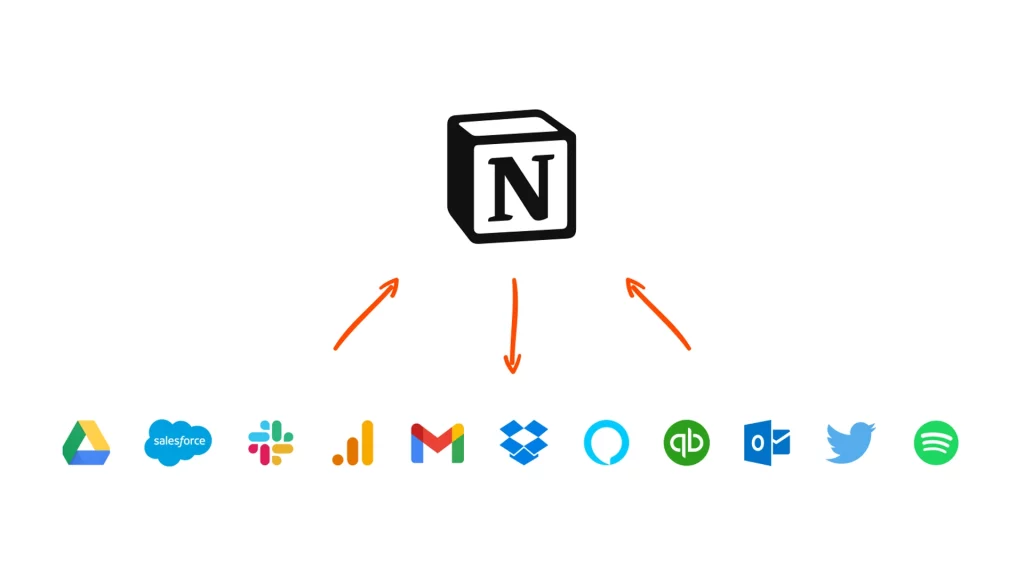
The integrations help Notion reach out for functionalities that are beyond its native ones. We link up with tools such as Google Drive, Slack, and other calendar applications to have all the data in one place. This way, our working rhythm is uninterrupted, and we do not have to waste time as frequently changing the context.
Efficiency may also be increased with the help of automation platforms. The processes between the two systems being synchronized, results in the disappearance of the same kind of tasks that need to be done manually. We definitely take the matter of API usage very seriously and ensure that the tokens used there are handled in that way.
Setting up thoughtful integrations will make Notion be your command center(OS) as opposed to just another tool that you keep on the shelf and hardly ever use. Moreover, it makes Notion the most valuable application within the organization.
Task and Project Management Configuration
We create task/project management systems that look, feel, and work like the actual workflows. Tasks will be linked to their respective projects, as well as, be getting the owners and deadlines. The use of statuses to represent each task gives a very quick insight into which stage the task is, whether it is progressing or it is blocked.
By use of dashboards, it is possible to gather at one place the vital metrics and the resultant displays would be priorities, timelines, and workloads. Thus, the dashboards become a single source of truth that fads and random tidbits are replaced with.
A good task system plays a critical role in assuring, among other things, clarity, and momentum for the teams.
Other article: https://jamasho.com/wp-admin/post.php?post=1358&action=edit
Knowledge Base and Documentation Setup
A well-structured knowledge base is key to retaining institutional knowledge. We categorize and organize our documentation, and use pre-designed uniform templates and naming conventions throughout. The content is made even more searchable through the use of descriptive headings and tags.
An internal wiki is a dynamic set of pages that gets updated all the time and does not stay as a one-off written document. The linking of related pages provides a web of context which facilitates greater understanding and onboarding.
Setting up effective documentation not only ensures that knowledge remains and accumulates over time but also prevents it from being lost in scattered notes.
Optimizing Notion for Team Collaboration
When collaboration is at its peak, it is usually because the tools have been intentionally configured. We promote the use of comments, mentions, and inline feedback which can centralize the communication. Real-time editing allows working through different drafts very fast without any version conflicts.
Major content can be protected by the use of version history and page locking, etc. We provide training for teams on collaboration etiquette to ensure that only positive editing happens.
Such settings turn Notion into a collaborative workspace that fosters transparency, alignment, and shared ownership.
Backup, Export, and Data Management Settings
One of the most fundamental aspects of data management is data protection. We set up the system to run regular exports into the preferred formats thus making sure that data is always accessible even when outside Notion. Back up schedules are kept to be referred to and checked.
Being knowledgeable about export is an advantage when it comes to avoid getting surprised at audits or migrations. We also create file naming standards for the exported files so as to keep the clarity.
Handling of data in a way that is anticipatory comforts and compliance which, in turn, is beneficial to the workspace that we trust.
Performance, Maintenance, and Scaling Your Notion Workspace
When the workspace is getting bigger, it is of great importance to do maintenance. We make it a point to archive the periods, hasten the heavy databases, and assess the efficiency of the formulas. Checking the performance is a means to maintain the level of responsiveness.
Scaling can be brought about through modular and standardized structures. Without hurting the intent of the content, such tactics still preserve the neatness and the quality as the number of users increases.
If well taken care of the workspace can be very flexible, very reliable, and quite adaptable over an extended period.
Conclusion
A complete Notion account setup unleashes the entity of a tool. When you set a deliberate environment for each setting you have a workspace that promotes clarity, collaboration, and growth. This methodical approach makes sure that Notion grows with our needs and not that it becomes a barrier. With the right foundation, Notion is no longer a mere tool it is the operating system of our work.